Before you begin
- Your assigned Penny number
- Access to the line you are forwarding
- A second phone to check the original business number
Step 1
Confirm the carrier and plan on the original line
Ask your provider for the procedure for your specific line. A landline, hosted business system, or mobile virtual network can use different settings from the carrier whose towers it uses. The recipes below are examples to verify, not a universal procedure.
Step 2
Choose the forwarding mode and enter your destination
The instructions below match your dashboard’s carrier guide. ‘Your Penny number’ means the number assigned in Numbers, with the area code. Use that destination rather than the public demo line.
Overflow lets your team answer first. All-call forwarding sends every incoming call to Penny. Follow the row for the mode you want.
Step 3
Call the original number from another phone
For all-call forwarding, confirm that Penny answers the business line. For overflow, test both a busy line and an unanswered call. Then check that a call the office answers still behaves as expected.
Step 4
Check the disable procedure while the test is fresh
Keep the turn-off instructions below with your office procedure. If the code fails or routes calls somewhere unexpected, disable forwarding and ask the provider to confirm the plan-specific settings.
Every call
Turn on
On most carriers: dial *72 your Penny number then press call.
Turn off
Dial *73 then press call.
Only missed calls
Turn on
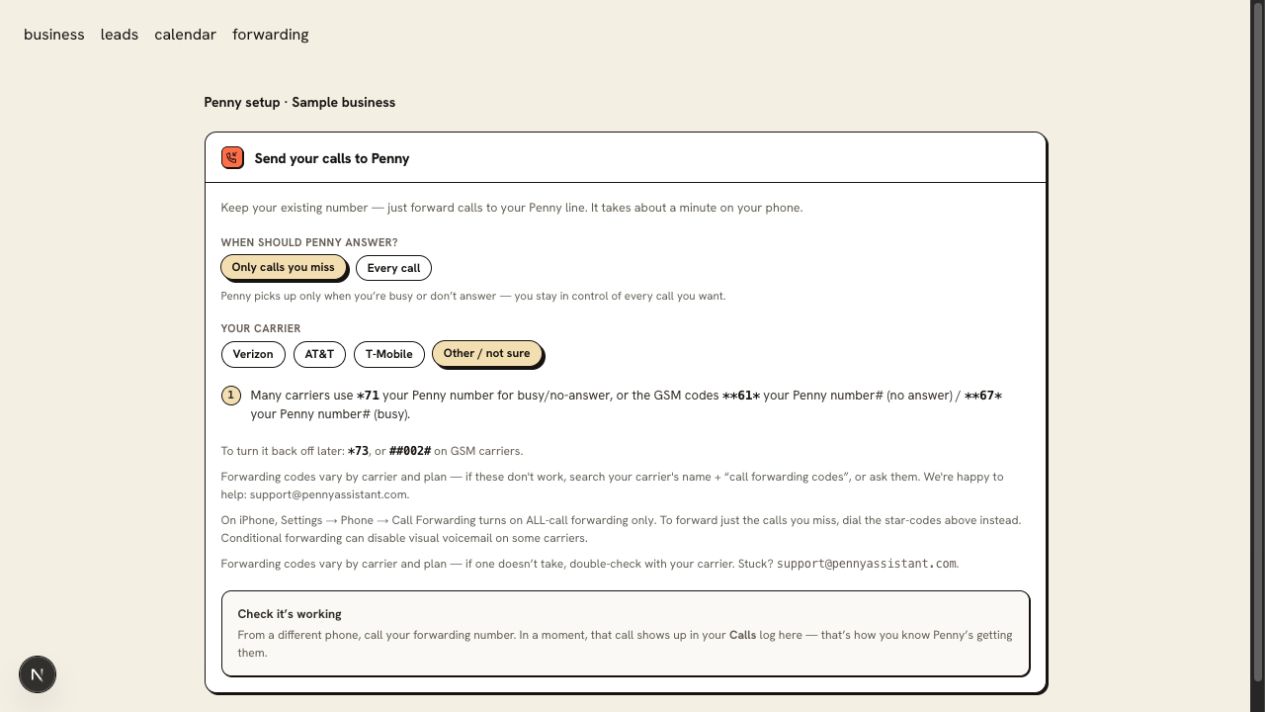
Many carriers use *71 your Penny number for busy/no-answer, or the GSM codes **61* your Penny number# (no answer) / **67* your Penny number# (busy).
Turn off
*73, or ##002# on GSM carriers.
Forwarding codes vary by carrier and plan — if these don't work, search your carrier's name + “call forwarding codes”, or ask them. We're happy to help: support@pennyassistant.com.
You are ready when
Calls to the original business number follow the mode you selected, and the office knows how to turn forwarding off.
If the test does not pass
- Carrier charges, voicemail behavior, and no-answer timers depend on the plan. Check those with the provider.
- If your iPhone only offers an on/off forwarding switch, it controls all calls. Conditional forwarding uses your carrier’s own procedure.
- For Visible, prepaid plans, or an unlisted business phone system, email support@pennyassistant.com with the provider and plan name. Do not send account passwords or PINs.
Questions about this setup
Where do I enter the forwarding instruction?
Use the procedure your current provider gives for the line or phone system. A hosted phone system may use an administrator console rather than a handset code. Confirm the procedure before changing the route.
Will the original phone still ring?
With overflow, your phone gets the first chance to answer. With every-call forwarding, calls go to Penny. The carrier controls the conditions and timeout, so test the mode on your own plan.