For the person who writes the office procedure
Penny collects the job details your crew needs before booking.
The unit number, the gate code, the question you always ask about the equipment: put them in your intake. Mark the details required for a booking, then set the hours, service area, and transfer contacts that make the request useful to your office.
Included on All plans for business settings · paid plans for phone rules
14 days of Pro included. No credit card.
01
Introduce the business in the greeting you choose
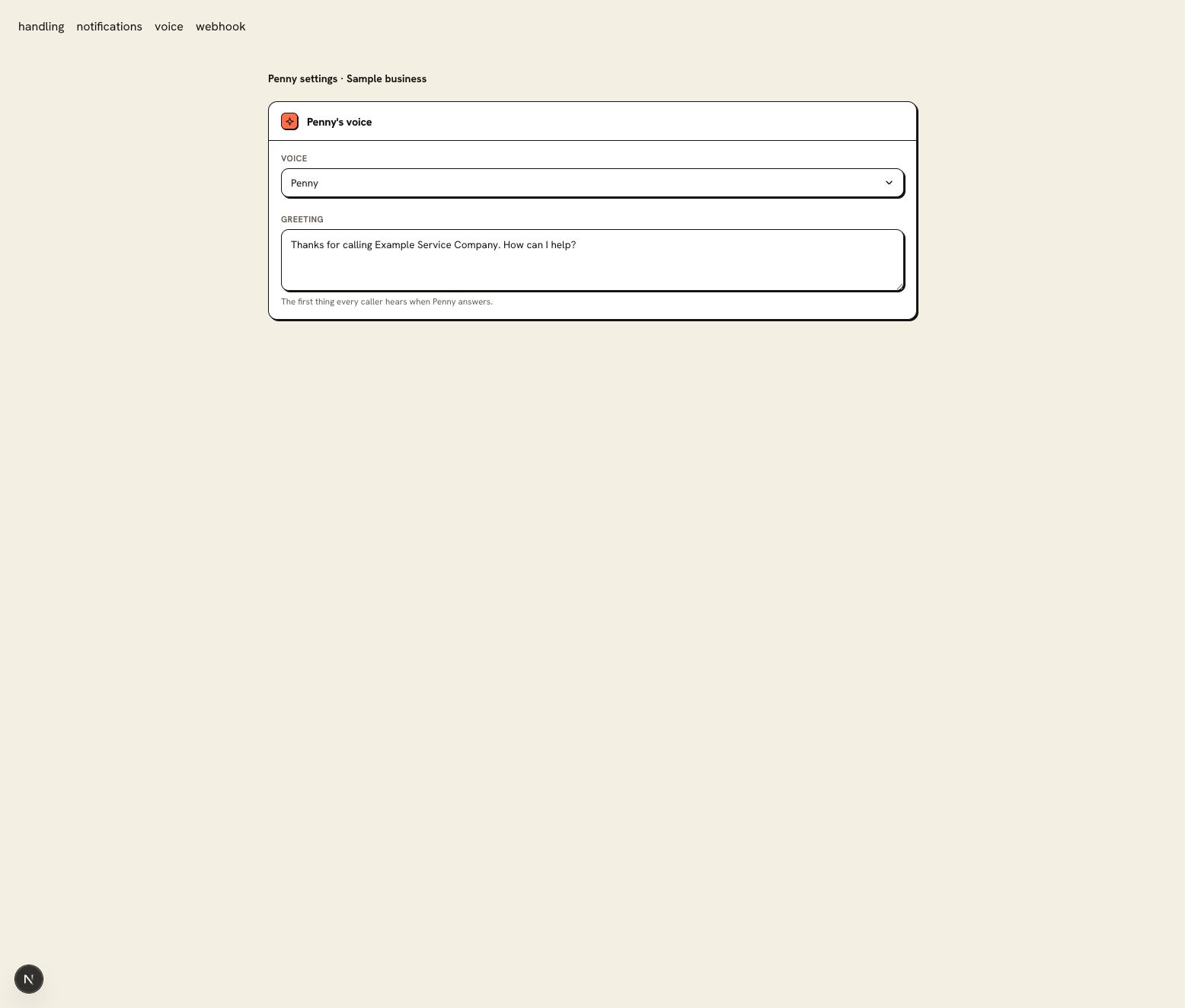
Write the opening callers should hear and an after-hours version that explains what happens after close. Keep each short enough to leave room for the reason they called.
An evening greeting can say that your office is closed while Penny handles booking requests and follows the urgent-call rule. It should reflect the coverage you have assigned that night.
02
Make your coverage area part of ordinary intake
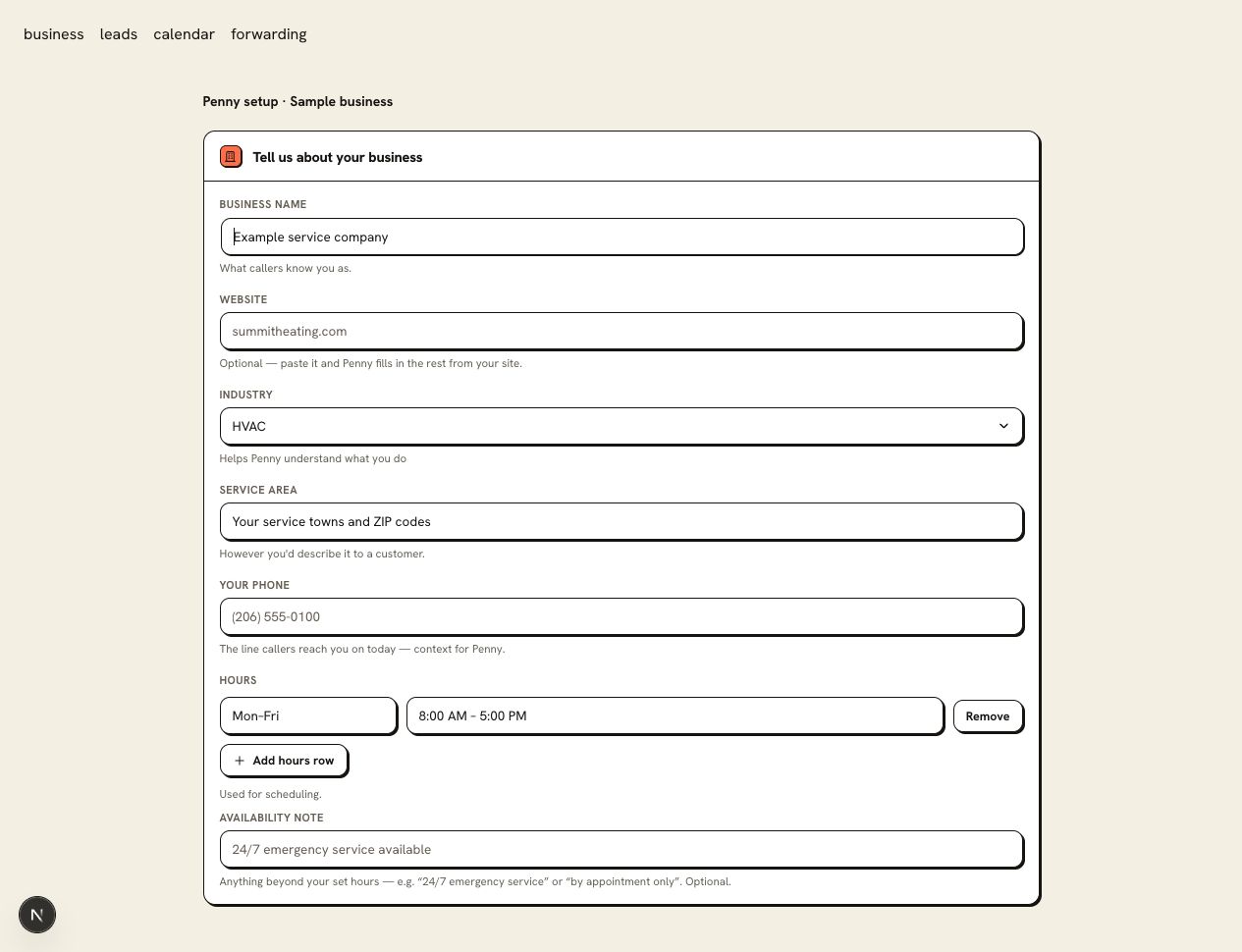
Save the towns or ZIP codes you serve, your opening hours, and your timezone. Penny checks the caller’s location against that coverage before offering a job your shop cannot take.
Give each location its own details. A business with two offices can have different hours without making callers work out which schedule applies.
03
Required fields keep incomplete requests out of the calendar
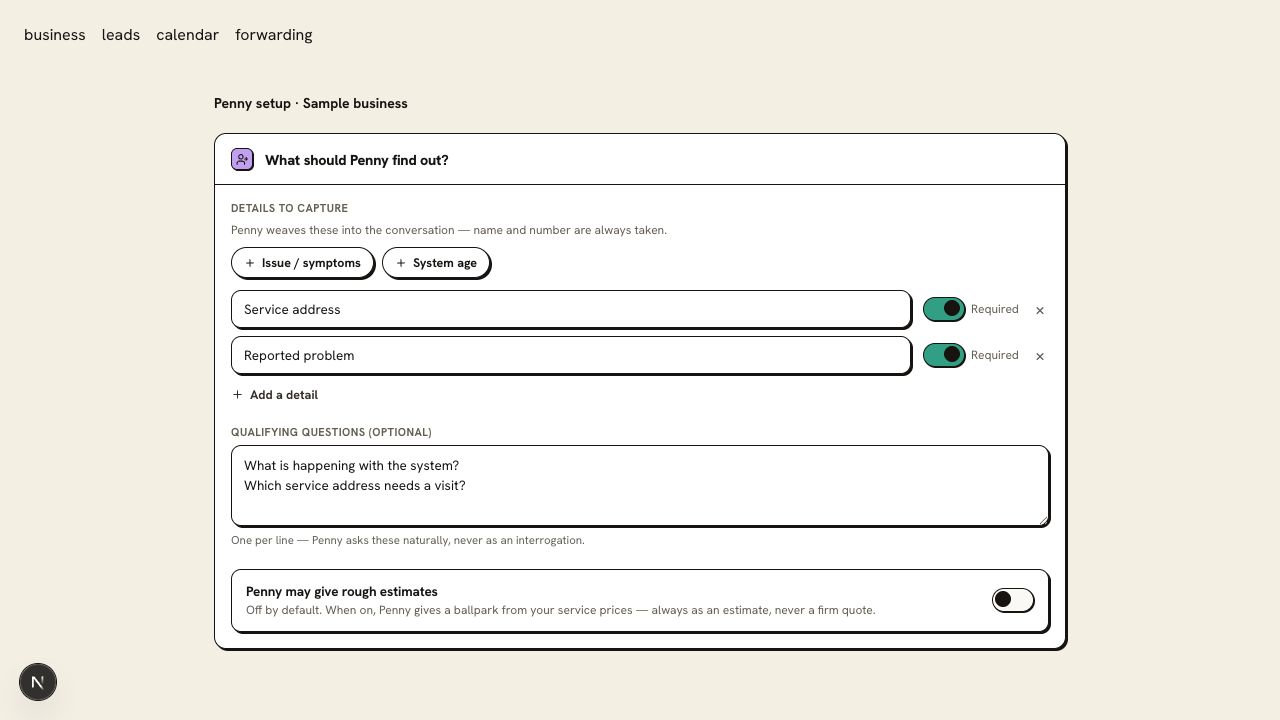
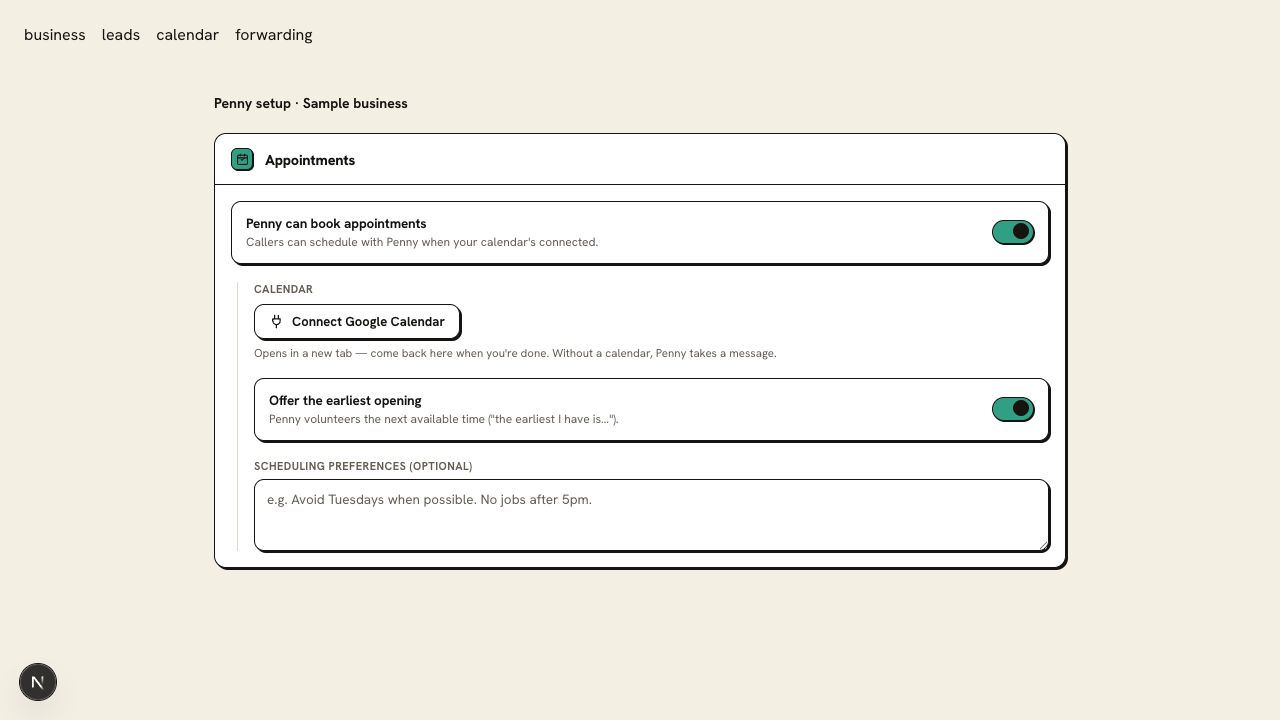
Write the questions as you ask them at the desk: whether the unit runs but blows warm, which floor needs service, whether the tenant will be home. Mark the details a booking needs as required. Penny asks for them before reserving a time; a caller who prefers a callback can leave a request for your office.
Service address
the location where the work is needed, including the unit when relevant.
Callback number
the number your team can use if the appointment needs attention.
Reason for the visit
the caller’s description, kept distinct from a professional diagnosis.
04
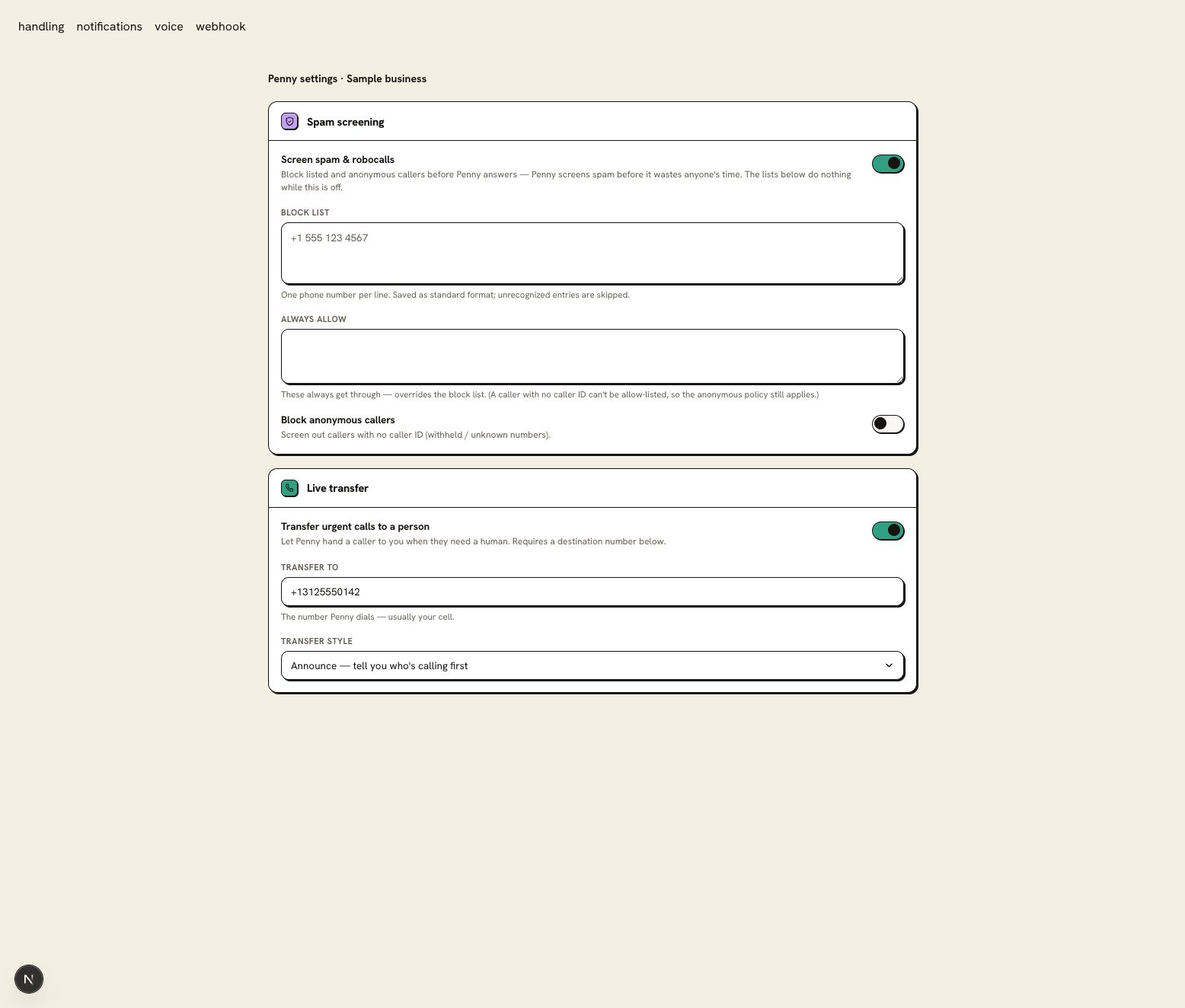
Screen nuisance calls without blocking your regular contacts
Use the block list for known unwanted numbers and always-allow for contacts you want to hear from. Review anonymous-call handling separately; a caller without caller ID cannot match a saved phone number.
Test a supplier or building manager’s number after changing the lists. Keep emergency contacts reachable under the policy your business uses.
05
Give transfers a destination your team will answer
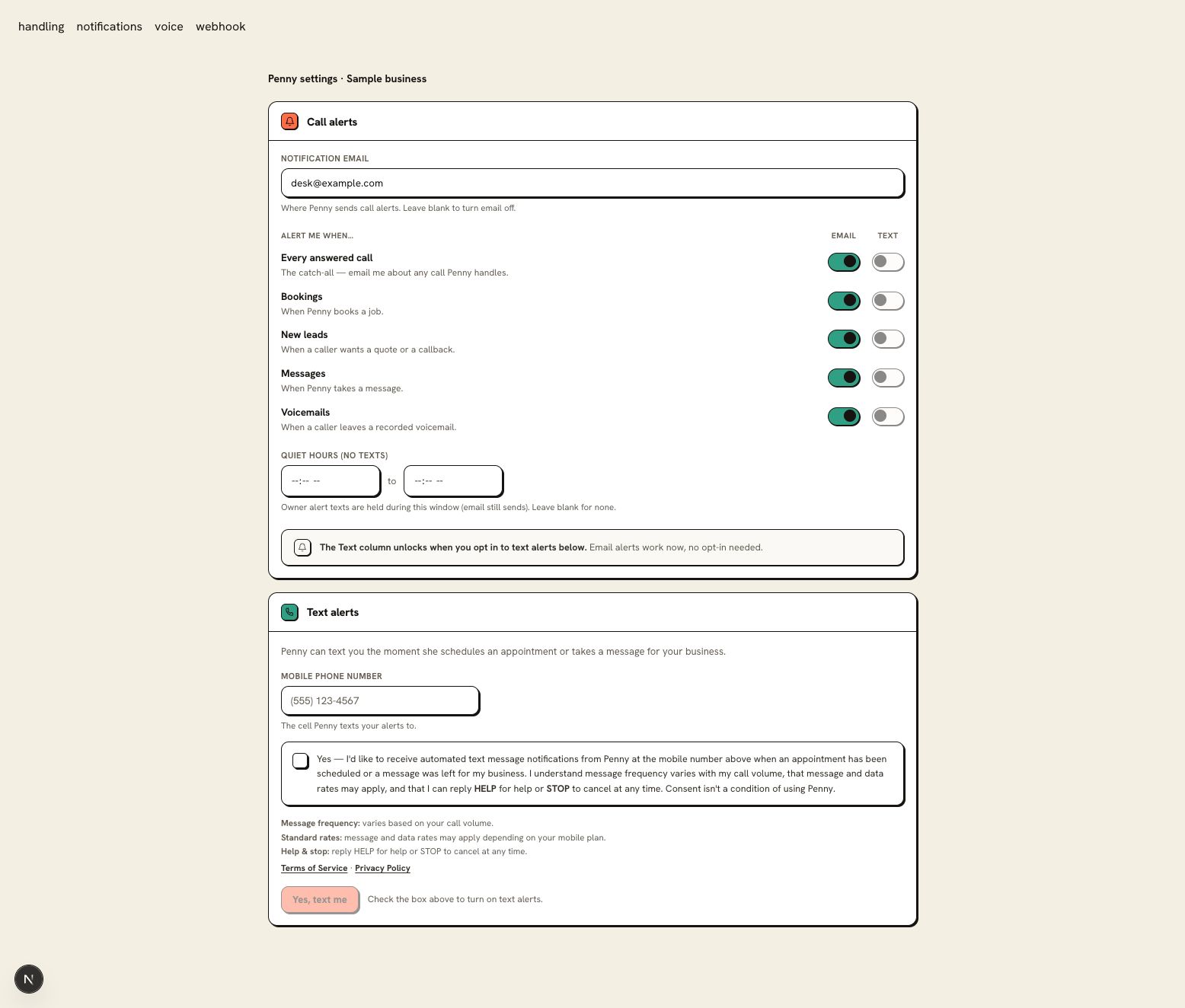
Save the transfer number and style in Call handling. Starter uses one destination; Pro adds warm transfer and the on-call schedule. Owner SMS alerts are skipped during quiet hours; enabled email notifications still send. Review that window alongside urgent-call coverage and test the receiving channel.
Test the receiving phone as well as Penny’s side of the call. The log should identify whether the destination answered.
06
Set quoting limits around your approved business information
Enter prices only when you want Penny to repeat an approved charge. A diagnostic fee, an appointment deposit policy, and a final repair quote are different things; name the one you mean.
Keep diagnosis and professional advice with the qualified member of your team. Penny can collect the question and route it under the rule you set.
07
The same intake requirements apply in English and Spanish
Penny follows the caller’s language and can switch during the conversation. Required booking fields, service-area rules, and transfer actions apply in both languages.
Include a Spanish call in your setup test. Check the captured address and the appointment time as well as the greeting.
Decide what a complete booking needs to contain
Send setup or plan questions to support@pennyassistant.com.
Start with the template for your trade, then edit it for your shop. Keep the details your crew needs and remove questions that do not apply to your work. Run a test with one required detail missing before accepting customer calls.
Give Penny a call before you forward yours.
Try the HVAC demo, then set up Penny for your business. Your account includes 14 days of Pro; Free keeps your website chat after the trial.
14 days of Pro included. No credit card.