Before you begin
- An administrator for your field-service account
- Any API or partner access required by that provider
- Your office’s required intake fields
Step 1
Choose the field-service connection
Open Settings, then Integrations. Choose Jobber, Housecall Pro, or ServiceTitan. Review the connector page linked below so the office knows which record it creates.
Step 2
Authorize the intended company account
Use an account with permission to create intake records. For ServiceTitan, confirm the tenant and API access with your account administrator. Complete the connection using the instructions shown for that provider.
Step 3
Review the required details before the first write
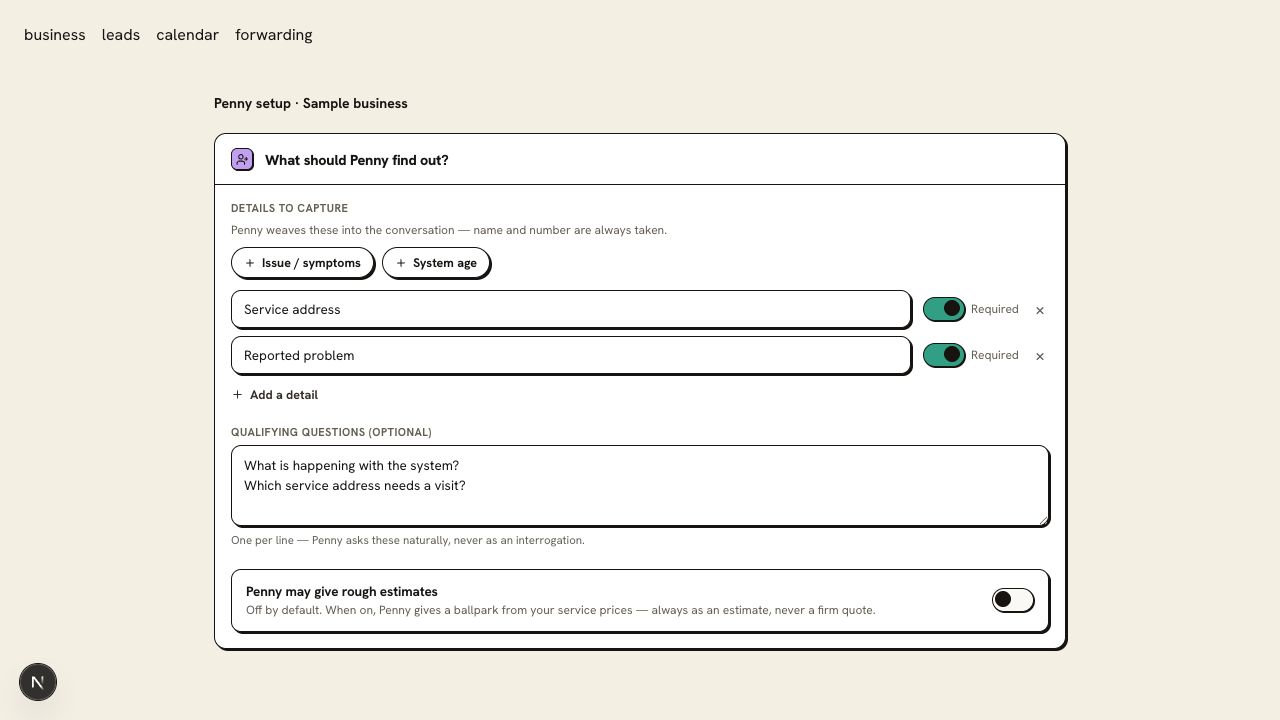
Collect the caller’s name, phone number, service address, and description of the work. Map any additional required fields to the destination your office will use.
Jobber receives a Request. Housecall Pro receives the customer and job information. ServiceTitan receives a Booking for office review. Those records do not by themselves confirm a technician’s schedule.
Step 4
Create and inspect a labelled test request
Make a routine test call, then find the resulting record in the provider. Check the customer match, address, description, and status. Confirm which person in your office reviews new requests.
You are ready when
The test lands in the right company account with the details the office needs to schedule or follow up.
If the test does not pass
- If a duplicate customer appears, review the phone number used for matching before making another test.
- If access is denied, have the provider account administrator check the permissions and subscription’s API access.
- A confirmed calendar appointment and a field-service intake record are separate outcomes. Check both if you use both connections.
Questions about this setup
Does every connector create a scheduled job?
No. Jobber receives a Request; ServiceTitan receives a Booking for office review. Housecall Pro receives customer and job information. Check the provider’s page for the record and the scheduling work your office still owns.
What should the office check on the first call?
Open the destination record and confirm the company account, customer match, address, reported problem, and status. Name who reviews the intake so the request has a next step.