The fields your office receives
| Source field | Destination |
|---|---|
| Caller name | Matched or newly created client |
| Service inquiry | Jobber Request title or description |
| Details included in the inquiry | Request text for the office to review |
- Direction
- Penny looks for the client in Jobber, then writes a Request against that client.
- When it happens
- The Request is created during the call after Penny has captured the service inquiry.
A Jobber Request is intake. Your office still decides on a quote, job, and scheduled visit. Penny tells the caller that the team will follow up to schedule; she does not promise a technician’s arrival from this write.
Set up the connection
- 1
Authorize Jobber
Choose Jobber in Penny’s Integrations settings. Sign in with an account authorized to connect apps and approve access to clients and requests.
- 2
Choose the intake questions
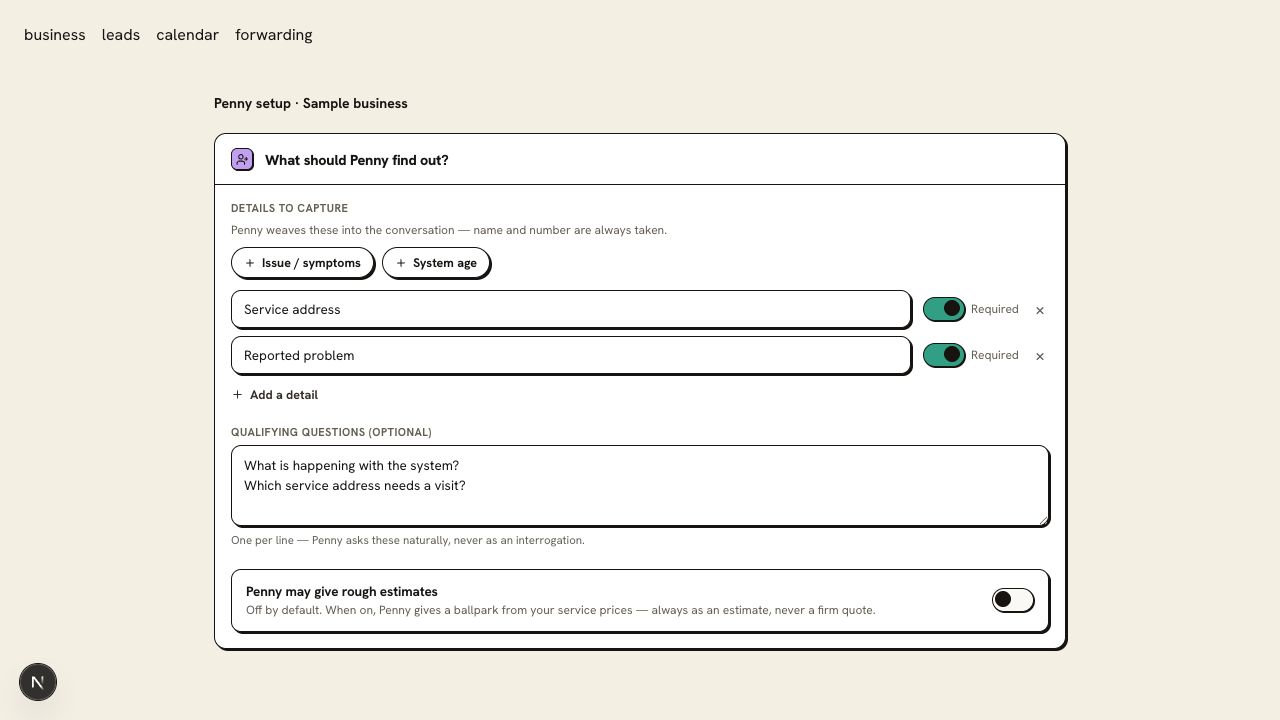
Require the name, callback number, and service details your office needs. Ask for the location before describing an inquiry as ready for follow-up.
- 3
Use a test client
Call Penny with a clearly marked test inquiry. Open Jobber and find the client and associated Request. Check that the request describes what the caller reported.
- 4
Assign the office’s follow-up
Decide who reviews Requests and contacts callers about scheduling. Use your normal Jobber workflow to turn the intake into the next step.
Jobber Request
- Client
- Sample Caller
- Request
- Kitchen faucet keeps dripping; caller requests a service visit
- Office action
- Review the inquiry and contact the caller about scheduling
Check the first result
Find the test Request under the correct client. Listen to Penny’s closing line: it should describe a captured request with office follow-up, without claiming a scheduled visit.
Questions about this connection
Does this create a scheduled Jobber visit?
It creates a Request for your office to review. Your team handles the quote, job, and scheduled visit in its normal Jobber workflow.
How do I know the connection is ready?
Find the test Request under the correct client. Listen to Penny’s closing line: it should describe a captured request with office follow-up, without claiming a scheduled visit.