Before you begin
- Access to your website’s settings or code
- Access to Website chat in your Penny dashboard
- Your published site’s domain
Step 1
Register the website where Penny should appear
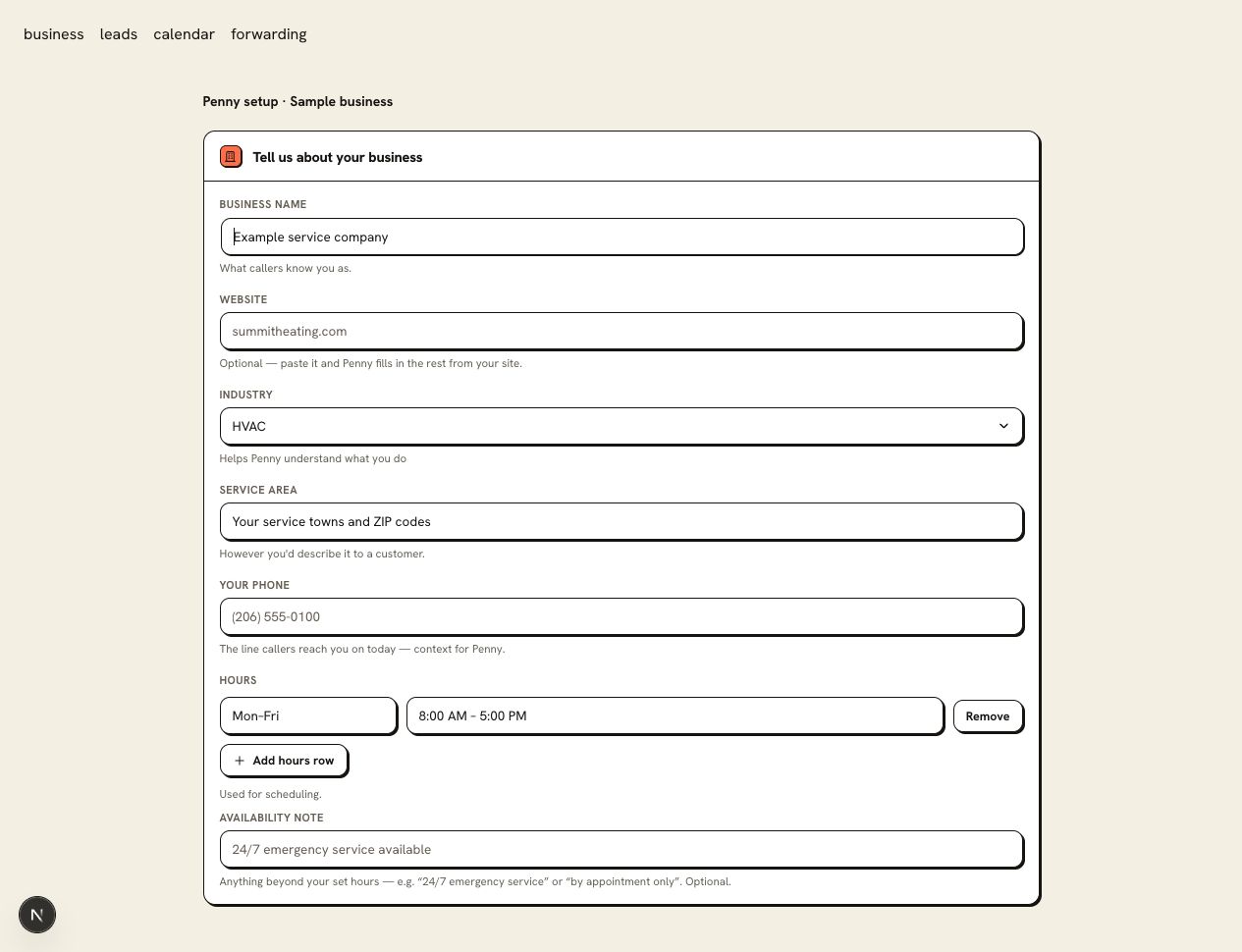
Open Website chat in your Penny dashboard and register the public domain your visitors open, including the correct version if your site redirects between www and the root domain. Review the business name, services, hours, and service area in Penny so the chat has the facts visitors need.
Step 2
Copy your business’s embed snippet
Copy the embed snippet for your business from Website chat in the dashboard. Check that the registered domain matches the site where you will install it, keep your business ID intact, and add the snippet only once per page. The example on the website-chat page shows the shape; use your own account’s ID.
Step 3
Install it using your platform’s code settings
Choose the platform instructions below. For a site you maintain in HTML, paste the snippet before the closing body tag. If someone maintains the website for you, send them the snippet and this guide.
Step 4
Test the published site as a visitor
Open the site in a private browser window and ask about a service you offer. Try an appointment request and check the result in Penny and your inbox. Repeat the test on a phone.
Free captures requests for you to confirm and includes 100 conversations a month. Paid plans add live calendar booking and remove the chat cap and Penny mark.
WordPress
Use your site’s supported header/footer code tool to place the snippet in the site-wide footer, then publish and clear any page cache. Avoid a paragraph block that displays script as text.
WordPress.com restricts JavaScript on some plans. Check its supported custom-code options before choosing the installation method.
Squarespace
Open Code Injection for your site and paste the snippet in the footer field, then save. Confirm your plan supports script injection and test the published page outside the editor.
Use Squarespace’s Code Injection guide to find the setting for your version.
Wix
Confirm the Wix site is published and has a connected domain, then open its Custom Code settings. Add the account snippet at Body – end on the pages where you want chat, following the snippet’s loading instructions. Test the published site after navigating between pages as well as on the first page.
An HTML embed inside a page is different from site-wide custom code. Follow Wix’s custom-code instructions for your editor.
GoDaddy
In Websites + Marketing, add an HTML section and paste the snippet in its custom-code field. Preview the section, publish, and check where chat appears on desktop and mobile.
GoDaddy’s section-based embed can constrain a widget to that section. If you need a site-wide floating button and your plan provides no global script setting, ask support to check your installation before changing builders. See GoDaddy’s custom-code guide.
Shopify
Duplicate your theme before editing it. In the theme code editor, open the layout file theme.liquid and add the snippet before the closing body tag. Preview the duplicate and publish only after checking the chat.
This installs chat on the storefront pages that use that layout. It does not add chat to every checkout surface. Follow Shopify’s theme-code instructions.
Plain HTML
Paste the account snippet before the closing body tag in your site’s shared layout. If the site has no shared layout, add it to each page where visitors need chat.
Deploy the page and inspect the published result. Keep the script URL and business ID supplied for your account unchanged; replacing the ID with the example text will not connect your business.
You are ready when
A visitor can open chat on the published domain, get the correct service answer, and leave a request that reaches your office.
If the test does not pass
- If the widget is missing, verify the registered domain and that the platform permits the script on your plan.
- If two widgets appear, remove the duplicate snippet from either the theme or the code-injection tool.
- If chat works only in a page section, check whether your builder embeds custom code in an isolated frame.
Questions about this setup
Does chat need its own set of business answers?
No. Chat uses the business details and website knowledge you configured for Penny. Test the services, hours, and service-area answers after installation.
Can I use the snippet on another domain?
Confirm the additional domain is registered for your account before installing it. Keep the account’s business ID intact and test the published address, including any www redirect.