The fields your office receives
| Source field | Destination |
|---|---|
| Lead, booking, message, or voicemail event | Notification heading |
| Call summary | Message body |
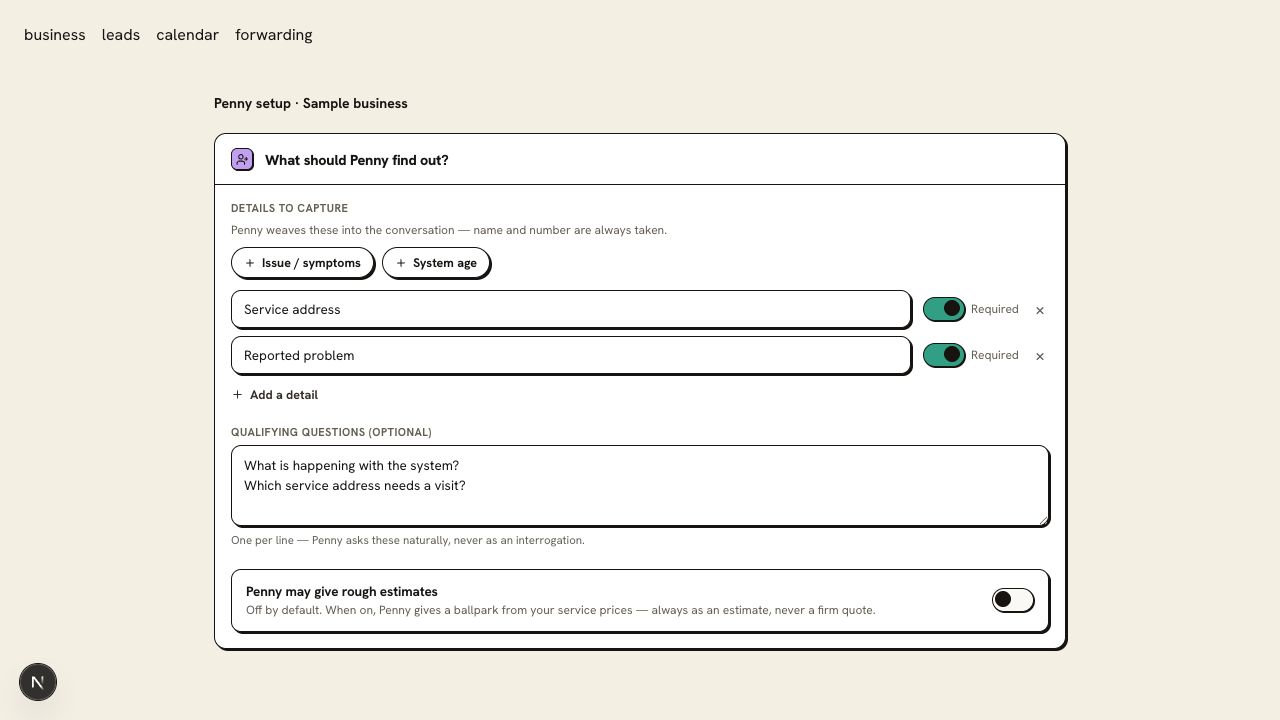
| Captured intake details | Labelled fields in the message |
- Direction
- Penny posts to the Slack channel attached to your incoming webhook.
- When it happens
- Notifications are sent after the relevant call event is processed. Slack delivery is separate from any in-call booking or transfer.
This is an outbound notification connection. Penny does not read channel conversations or act on replies. Everyone with access to the channel can see the details posted there, so choose the destination to suit your intake.
Set up the connection
- 1
Choose the working channel
Pick the channel your office uses to review inquiries. Check its membership before sending caller details to it.
- 2
Create a Slack incoming webhook
Follow Slack’s app instructions to enable incoming webhooks and authorize a webhook for that channel. Your workspace may require an administrator to approve the app.
- 3
Save the webhook in Penny
Open Slack in Penny’s Integrations settings and save the incoming webhook URL. Treat that URL as a credential; enter it in the connection settings rather than a public channel.
- 4
Send a test inquiry
Call Penny and leave a marked test message. Open the channel and compare the notification’s summary and captured fields with the call.
Slack notification
- Heading
- New lead
- Summary
- Caller requests an estimate for interior painting
- Requested rooms
- Kitchen and hallway
- Callback
- Caller-provided number, if captured
Check the first result
Confirm the test appears in the intended channel and reaches the people assigned to follow up. Check a message-taking call as well as a new lead.
Questions about this connection
Can a reply in Slack change Penny’s instructions?
No. This connection posts notifications to the incoming webhook you configure. Update Penny’s business settings in the dashboard and use your team’s process to assign the callback.
How do I know the connection is ready?
Confirm the test appears in the intended channel and reaches the people assigned to follow up. Check a message-taking call as well as a new lead.