Before you begin
- A destination app or an HTTPS endpoint you control
- Permission to configure that system
- A labelled test call with non-sensitive sample details
Step 1
Choose the path that fits the receiving system
Use Zapier when your app already has a suitable action. Use a signed webhook when your team owns the receiving endpoint. Business adds a read API for reporting and exports; it does not provide an unrestricted API for changing business settings or creating bookings.
Step 2
Connect the destination and keep credentials private
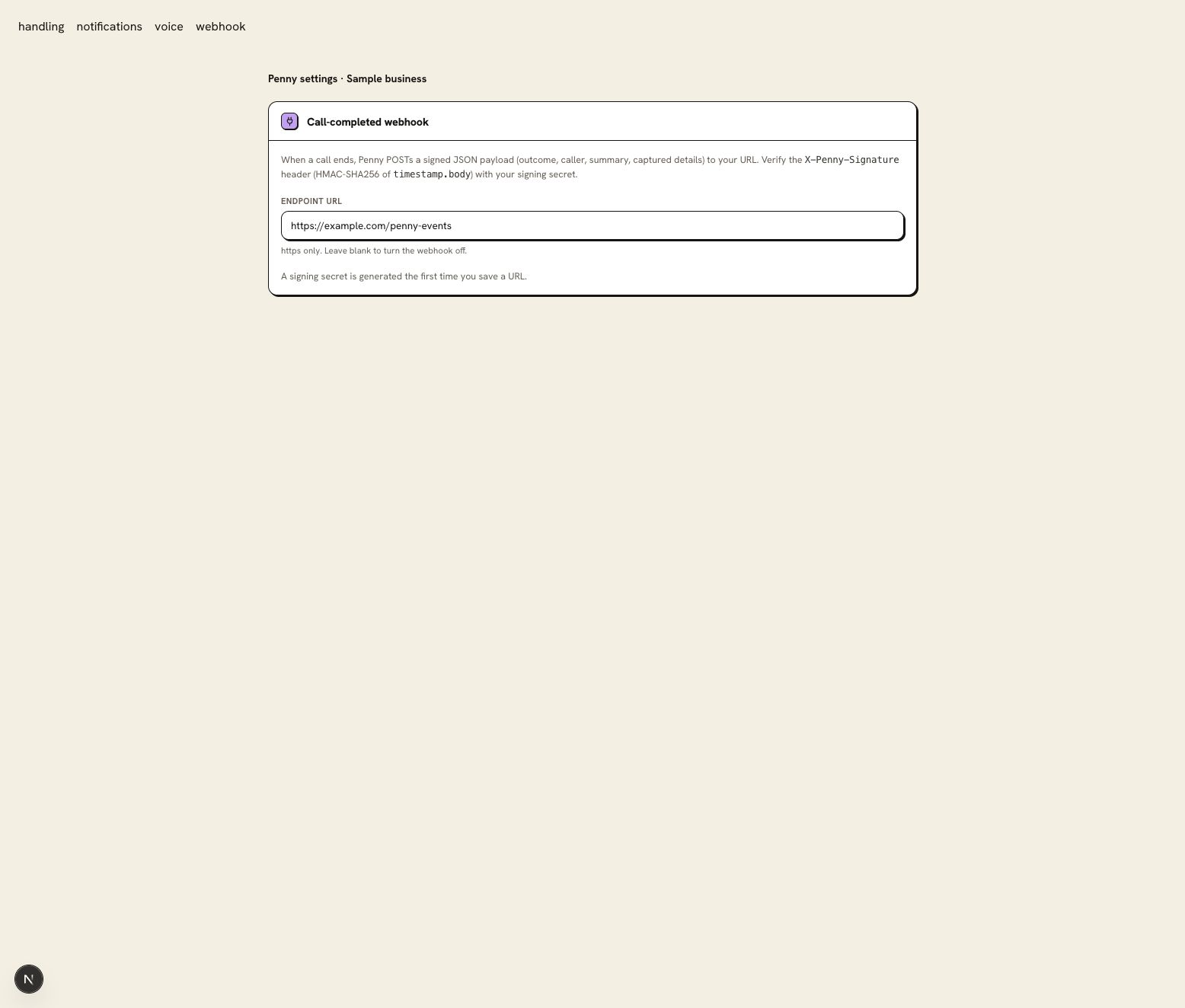
For Zapier, use the connection credential supplied for your account and choose the call event. Contact support for the account’s Zapier setup and current event reference. For a direct webhook, save the HTTPS URL in Settings → Webhook and store the signing secret when it is revealed.
Keep credentials out of browser code, screenshots, and support messages. A direct webhook receiver must verify the signature against the timestamp and raw request body, then reject stale timestamps before accepting the data. Use the current signing reference for the permitted timestamp window.
Step 3
Map fields to the action you want
Map the caller’s contact details, captured fields, outcome, and summary to the destination. Use the event identifier, or the event type together with the call identifier, to avoid duplicates when delivery is retried. A call can produce different event types that your workflow may need to handle separately.
For HubSpot, Salesforce, or QuickBooks, the Zap or receiver defines the destination object. A call event should create the task or intake record your team has chosen; it is not proof of a paid invoice or a scheduled job.
Step 4
Inspect one delivery from call to destination
Run a labelled test and compare the Penny call record with the receiving app. Check missing fields and the destination status. For a custom receiver, check rejected signatures and repeated events as part of your integration test.
Request the API access instructions and current endpoint reference for your Business account from support. Build against that schema and verify one read request before connecting a reporting workflow.
You are ready when
The receiving system contains one correctly mapped test record, linked to the call that produced it.
If the test does not pass
- If a Zap receives no sample, create a new test call after connecting and check the selected event.
- If signature verification fails, verify the unmodified body and the current secret; rotating the secret requires updating the receiver.
- If the destination rejects a field, inspect its required properties and map the missing intake detail.
Questions about this setup
Which route should I use?
Choose Zapier for an app with an action you need, a signed webhook for a receiver your team controls, or the Business read API for reporting on your own schedule. Zapier and webhooks are included from Starter.
How do I keep a retry from creating a second record?
Use the event identifier, or the event type with the call identifier, to recognize a repeat delivery. Check the current event reference and test that the receiving system handles the same event twice without creating another record.