The fields your office receives
| Source field | Destination |
|---|---|
| Service and caller name | Outlook event subject |
| Agreed date and time | Event start and end |
| Service address, when supplied | Event body |
| Calendar free/busy information | Penny’s availability check |
- Direction
- Outlook provides free/busy information. Penny creates the appointment in the connected calendar.
- When it happens
- The availability check and booking happen within the conversation. Penny confirms the booking after Outlook accepts it.
Connecting one mailbox does not give Penny access to every staff member’s schedule. Confirm the calendar covered by your connection. If there is no open time or the connection fails, Penny records a callback request.
Set up the connection
- 1
Sign in with the appointment account
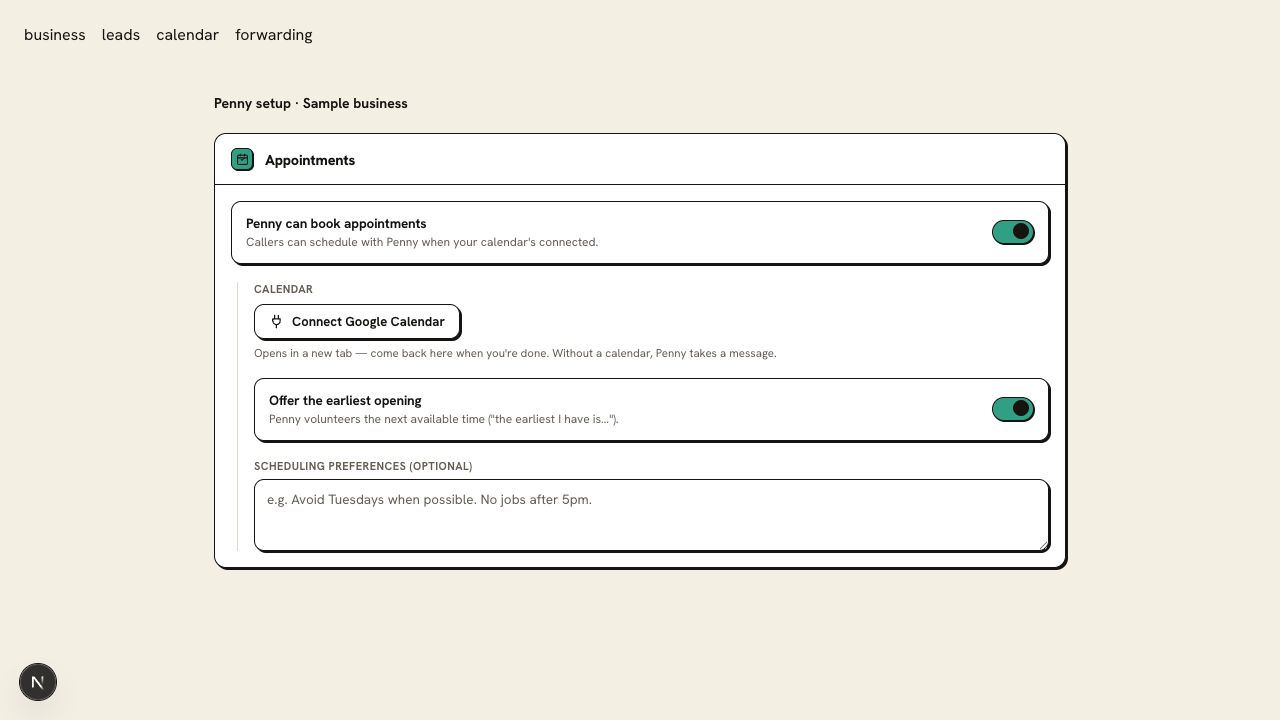
Choose Outlook Calendar in Penny’s Integrations settings. Use the Microsoft account that holds the appointments you want Penny to book.
- 2
Complete the permission check
Approve the requested calendar permissions. If your Microsoft organization requires administrator approval, have your administrator finish that step before testing.
- 3
Align the working day
Confirm the calendar or mailbox shown in the connection. Check Penny’s timezone and business hours against the office’s Outlook calendar.
- 4
Listen to a booking and inspect the event
Place a test call and accept an available appointment. Open Outlook to compare the date, time, caller name, and service address with the conversation.
Outlook appointment
- Subject
- Consultation — Sample Caller
- Start
- September 16, 2026, 9:00 a.m. Eastern
- End
- September 16, 2026, 10:00 a.m. Eastern
- Body
- Office consultation; caller-provided location
Check the first result
Verify the event appears in the intended mailbox with the correct timezone. Block another test time in Outlook and confirm Penny respects that busy period.
Questions about this connection
Can Penny see every staff member’s schedule?
The connection covers the calendar or mailbox you authorize. Confirm that scope with your Microsoft administrator and use the schedule your office intends Penny to book.
How do I know the connection is ready?
Verify the event appears in the intended mailbox with the correct timezone. Block another test time in Outlook and confirm Penny respects that busy period.