The fields your office receives
| Source field | Destination |
|---|---|
| Caller name and service requested | Event title |
| Agreed appointment time | Event start and end |
| Service address, when supplied | Event description |
| Existing busy periods | Read by Penny when checking availability |
- Direction
- Google Calendar sends availability to Penny. Penny writes the agreed appointment to the booking calendar.
- When it happens
- Availability is checked and the event is created during the call or website chat.
A calendar reservation covers the appointment you have authorized Penny to offer. It does not assign a technician, reserve equipment, or confirm a third party’s access permission. If the calendar cannot be reached, Penny takes a message for your team.
Set up the connection
- 1
Connect the account that owns your booking calendar
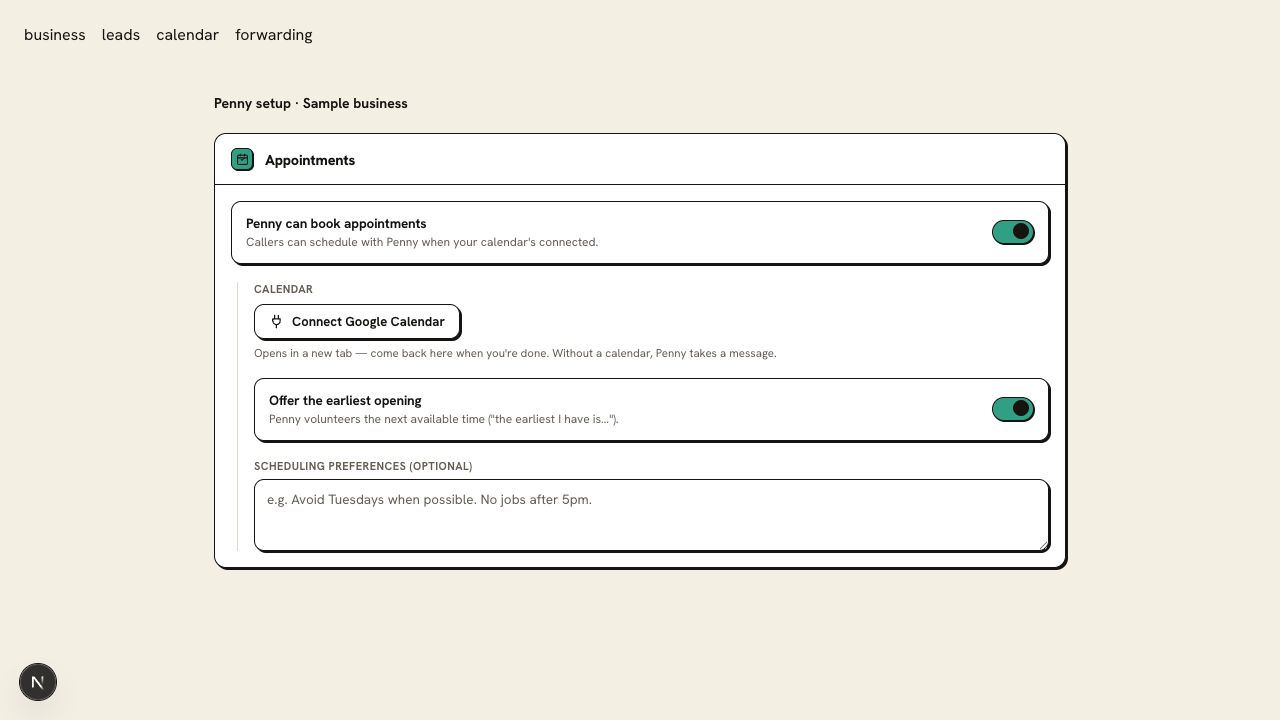
Open Integrations in Penny and choose Google Calendar. Sign in to the Google account you use for appointments and grant the requested calendar access.
- 2
Check the calendar and hours
Confirm the booking calendar in the connection settings. Set your business hours and timezone in Penny so an open evening in Google does not become an offer outside your working day.
- 3
Set the information a booking needs
Require the caller’s name and the details your team needs before accepting the visit. For a service call, include the service address in the intake.
- 4
Make one test booking
Call your Penny number and accept an offered time. Open that event in Google Calendar. Repeat the test with a busy period to check that Penny offers an available time.
Google Calendar event
- Title
- Estimate visit — Sample Caller
- Start
- September 15, 2026, 1:00 p.m. Central
- End
- September 15, 2026, 2:00 p.m. Central
- Description
- 100 Example Lane; caller-provided service address
Check the first result
The event should be on the intended calendar at the same local time Penny confirmed. Check the service and caller name, then remove your test event.
Questions about this connection
Which calendar should I connect?
Choose the calendar that holds the jobs your office schedules, including blocked time. A separate personal calendar will not show Penny the appointments already assigned to your crew.
How do I know the connection is ready?
The event should be on the intended calendar at the same local time Penny confirmed. Check the service and caller name, then remove your test event.